
A reliable Wi-Fi connection makes everyday life easier. Whether you’re checking email, watching your favorite shows, making video calls with family, or using smart home devices, you depend on a strong wireless signal.
But what happens when your Wi-Fi works perfectly in the living room and barely reaches the bedroom? Or when your phone keeps disconnecting even though you’re paying for high-speed internet?
The good news is that many common home Wi-Fi problems can be improved without buying a new router or upgrading your internet plan.
Here are seven practical ways to improve Wi-Fi coverage throughout your home.
1. Move Your Router to a Better Location
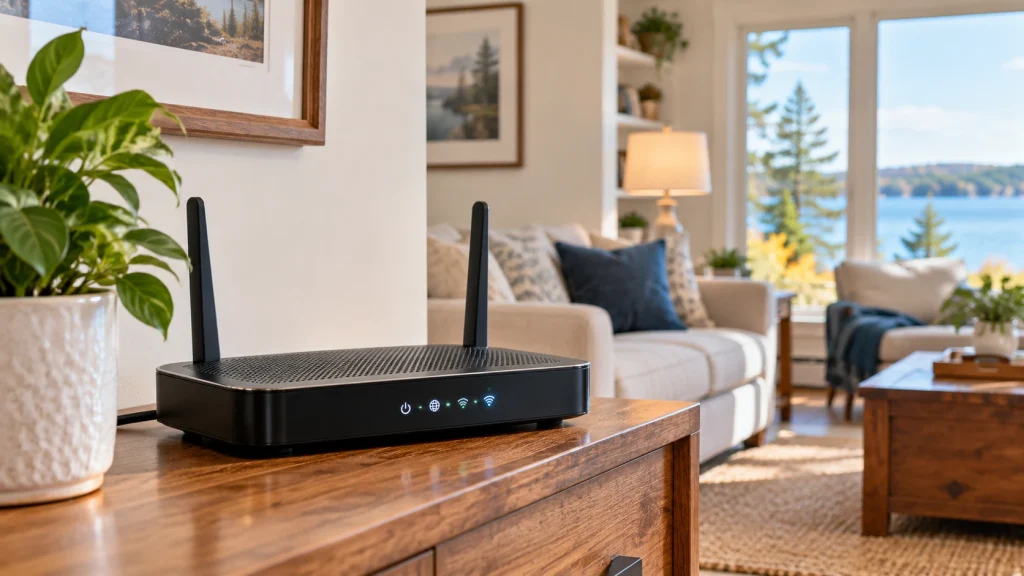
Where you place your Wi-Fi router can make a big difference in how well your wireless network performs.
Wi-Fi signals travel outward from the router, but walls, furniture, appliances, and other obstacles can weaken them.
For better coverage, try placing your router:
- Near the center of your home, when practical.
- On a shelf or table rather than directly on the floor.
- In an open area instead of inside a cabinet.
- Away from large metal objects, microwaves, and other electronics that may cause interference.
If your router is tucked away in a basement corner or behind a television, moving it may noticeably improve coverage.
Helpful tip: If your internet connection enters the house in an inconvenient location, you may be able to use a longer Ethernet cable or reposition a separate wireless access point. Your options depend on your equipment.
2. Restart Your Router and Modem
Sometimes the simplest solution works.
Routers and modems can develop temporary connection problems, especially when they’ve been running continuously for a long time.
To restart your equipment:
- Unplug the power cables from your modem and router. If you have one combined device, unplug that device.
- Wait approximately 30 seconds.
- Plug the modem back in first and allow it to reconnect.
- Plug the router back in, if it’s a separate device.
- Wait a few minutes, then test your connection.
Restarting won’t solve every Wi-Fi problem, but it’s a reasonable first troubleshooting step.
Avoid pressing the small Reset button unless you specifically intend to restore factory settings. That can erase your network configuration.
3. Check Where Your Wi-Fi Signal Gets Weak
Before spending money on new equipment, identify where the connection is actually struggling.
Walk through your home with a smartphone or laptop connected to your Wi-Fi network.
Pay attention to places where:
- Websites take longer to load.
- Video calls freeze or disconnect.
- Streaming services pause to buffer.
- Smart TVs or other devices lose their connection.
- Your device shows fewer Wi-Fi signal bars.
These areas are often called Wi-Fi dead zones, although some still have a weak or unreliable signal rather than no connection at all.
You can also run an internet speed test in different rooms to compare performance.
Keep in mind that speed tests measure more than signal strength. Your internet service, device, and network activity can all affect the results.
4. Try a Different Wi-Fi Frequency Band
Many home routers provide both 2.4 GHz and 5 GHz Wi-Fi connections. Some newer systems also support 6 GHz.
Here’s the basic difference:
- 2.4 GHz: Generally reaches farther and passes through obstacles more effectively, but may experience more interference.
- 5 GHz: Often provides faster speeds at shorter distances, with less effective coverage through walls.
- 6 GHz: Can provide excellent performance with compatible equipment, but typically has more limited range through obstacles.
If you’re trying to connect a device far from your router, 2.4 GHz may provide a more dependable signal.
If you’re close to the router and need faster performance, 5 GHz may work better.
Some routers automatically select the appropriate band for connected devices. Others display separate network names.
Helpful tip: You don’t need to change these settings unless you’re experiencing a problem. For many households, the router’s automatic settings work well.
5. Consider a Mesh Wi-Fi System for Larger Homes
If your home has multiple floors, long hallways, thick walls, or rooms far from the router, repositioning the equipment may not be enough.
A mesh Wi-Fi system uses multiple wireless units placed throughout your home to provide more consistent coverage.
For example, you might have:
- One main unit near your internet connection.
- A second unit toward the opposite end of the house.
- A third unit upstairs or near another difficult-to-reach area.
The units work together to provide a shared wireless network.
Mesh systems can be particularly useful in larger Northern Michigan homes where the internet connection enters at one end of the building.
However, a mesh system isn’t always necessary. Smaller homes may only need better router placement or a properly positioned access point.
And if you’re considering an inexpensive Wi-Fi extender, understand that some extenders can reduce performance or create an additional network name.
My recommendation: Identify the coverage problem before purchasing equipment. The right solution depends on your home’s layout, existing wiring, internet connection, and devices.
Planning to connect smart speakers, lights, or other devices throughout your home? Read my beginner’s guide to setting up smart home devices to learn how a reliable Wi-Fi connection supports connected technology.
6. Check Your Router’s Age and Updates
Older routers may struggle to support the number of devices commonly used in homes today.
Think about everything connected to your network:
- Smartphones and tablets
- Computers and laptops
- Smart televisions
- Video doorbells and security cameras
- Smart speakers
- Thermostats and other connected devices
If your router is several years old, it may be worth checking whether the manufacturer still provides firmware and security updates.
Router firmware is the software that controls how the device operates.
Some routers install updates automatically, while others require you to sign in to an administration page or mobile app.
If the manufacturer no longer supports your router with security updates, replacing it may be a good idea.
You don’t necessarily need the most expensive router on the market. A reliable, appropriately sized system is usually more important than paying for features you’ll never use.
7. Find Out Whether the Problem Is Wi-Fi or Your Internet Service
A weak wireless signal and a slow internet connection are not always the same problem.
For example:
If your internet works well near the router but poorly in another room, Wi-Fi coverage may be the issue.
If every device is slow, even when close to the router, the problem could involve your internet service, modem, router, or network congestion.
If only one device has trouble connecting, the problem may be with that device rather than your entire network.
When possible, testing a computer connected directly to the router with an Ethernet cable can help distinguish wireless problems from broader internet connection issues.
If the wired connection is also unreliable, your internet provider may need to investigate.
If your internet connection works but your computer is still having trouble, check out my guide to common computer problems and how to fix them.
When Should You Get Help With Home Wi-Fi?
You don’t have to become a networking expert to enjoy a dependable internet connection.
Sometimes a few simple adjustments solve the problem. Other situations require checking router settings, repositioning equipment, or selecting a better wireless system.
If you’ve tried the basics and still experience dead zones, dropped connections, or confusing equipment settings, getting some hands-on help can save time and frustration.
At Lake Effect Works, I provide friendly, patient in-home technology assistance throughout Northern Michigan, including help with everyday Wi-Fi and internet connection problems.
I can help you understand your current setup, troubleshoot common connection issues, and work through practical ways to improve coverage.
Whether you’re in Traverse City, Charlevoix, Elk Rapids, Bellaire, or a surrounding community, you can get straightforward help without complicated technical explanations.
Explore Technology Help Services
Frequently Asked Questions
Why is my Wi-Fi strong in one room but weak in another?
Wi-Fi signals weaken as they travel through walls, floors, and other obstacles. The distance from your router, building materials, and interference from nearby electronics can all affect coverage.
Will faster internet improve my Wi-Fi signal?
Not necessarily. A faster internet plan may improve available bandwidth, but it won’t automatically fix weak Wi-Fi coverage or dead zones inside your home.
Is a Wi-Fi extender or mesh system better?
It depends on your home and existing equipment. Mesh systems are often more convenient for providing consistent coverage across larger areas, while an extender may be adequate for a limited coverage problem.
How often should I replace my Wi-Fi router?
There isn’t a universal replacement schedule. Consider upgrading when your router no longer receives security updates, cannot reliably support your devices, or doesn’t meet your household’s coverage and performance needs.
Can someone help set up Wi-Fi equipment in my home?
Yes. Lake Effect Works offers in-home technology assistance in Northern Michigan, including help with router setup, common connection problems, and improving everyday Wi-Fi usability. Visit the Get Help page to discuss your situation.