
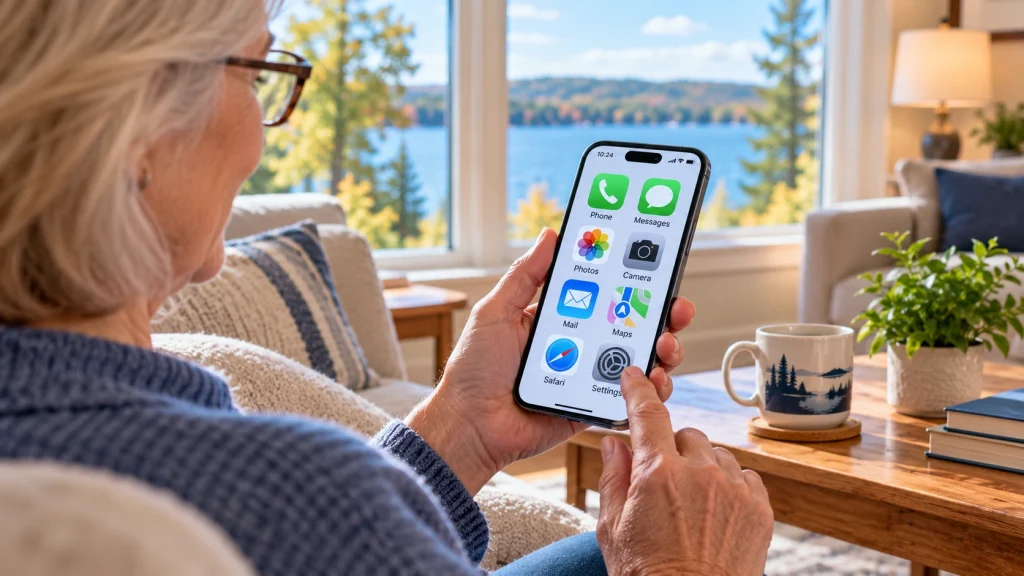
Want to make your smartphone easier to use? Smartphones can do some amazing things. They help us stay connected with family, take photos, find directions, check email, and manage everyday tasks. But they can also feel unnecessarily complicated.
Maybe the text is too small to read comfortably. Perhaps your phone constantly sends notifications you don’t understand, or you have trouble finding the apps you actually use.
The good news is that you don’t need to be a technology expert to make your smartphone easier to use. Both iPhones and Android phones include helpful settings that can make everyday tasks simpler, clearer, and more comfortable.
Here are eight practical ways to make your smartphone work better for you.
1. Make the Text Larger and Easier to Read
One of the easiest ways to improve your smartphone experience is to increase the text size.
Small letters can make reading text messages, emails, websites, and app menus frustrating. Fortunately, most smartphones allow you to adjust text size without installing anything.
On an iPhone
- Open Settings.
- Tap Display & Brightness.
- Select Text Size.
- Move the slider until the text feels comfortable to read.
For even larger text, look under Settings > Accessibility > Display & Text Size > Larger Text.
On an Android Phone
- Open Settings.
- Look for Display or Accessibility.
- Find Font Size, Display Size, or a similarly named setting.
- Adjust the available sliders to your preference.
Android menus vary depending on the phone manufacturer and software version. If you can’t find a setting, try using the search box at the top of your phone’s Settings app.
Helpful tip: Increasing display size can make buttons and other on-screen elements larger, not just the text.
2. Organize Your Home Screen Around the Apps You Actually Use
Over time, a smartphone’s home screen can become cluttered with apps you rarely open.
You might have several pages of icons, unfamiliar shortcuts, or apps you don’t remember installing.
A simpler home screen can make your phone much easier to navigate.
What You Can Try
- Keep your most-used apps on the first home screen.
- Place important apps such as Phone, Messages, Camera, and Photos where they’re easy to find.
- Move rarely used apps to another screen or folder.
- Remove unnecessary shortcuts from your home screen.
- Use clear, simple folders if you prefer grouping related apps.
On most phones, you can touch and hold an app icon to move it or view available options.
Important: Removing an app from your home screen isn’t always the same as uninstalling it. Read the options carefully before deleting anything.
You don’t need dozens of apps on your main screen. A handful of familiar, easy-to-find icons can make a big difference.
3. Reduce Unnecessary Notifications
Does your phone constantly buzz, ding, or display alerts?
Notifications can be helpful when they tell you about an important message or appointment. But too many notifications can become distracting and confusing.
Fortunately, you can choose which apps are allowed to interrupt you.
On an iPhone
- Open Settings.
- Tap Notifications.
- Select an app.
- Adjust its notification settings or turn off alerts you don’t need.
On an Android Phone
- Open Settings.
- Find Notifications.
- Look for App Notifications or a similar option.
- Choose which apps can send alerts.
Consider keeping notifications enabled for important communication apps, calendar reminders, and other services you rely on.
For shopping apps, games, and other less important apps, turning off unnecessary alerts may make your phone feel much calmer.
4. Use Voice Commands Instead of Typing Everything
Typing on a small touchscreen can be difficult, especially if you have trouble seeing the keyboard or tapping the correct letters.
Voice features can make everyday smartphone tasks much easier.
Depending on your device and settings, you may be able to use voice commands to:
- Call or message someone.
- Set reminders and alarms.
- Ask about the weather.
- Get directions.
- Search for information.
- Dictate text messages and emails.
On an iPhone
Apple’s Siri can help with many common tasks. You can review Siri settings under Settings, then look for Siri or Apple Intelligence & Siri, depending on your iPhone and software version.
On an Android Phone
Many Android phones support Google Assistant, Gemini, or other voice features. Availability and setup depend on your device.
Even if you don’t use a voice assistant, look for the microphone icon on your keyboard when typing a message. This often allows you to speak your words instead of typing them.
Helpful tip: Always review dictated messages before sending them. Voice recognition can occasionally misunderstand names or words.
Interested in using voice commands to control lights or other connected devices? See my beginner’s guide to setting up smart home devices.
5. Adjust Screen Brightness, Contrast, and Display Settings
Sometimes the problem isn’t the size of the text. It’s that the screen is difficult to see.
Bright sunlight, low contrast, or uncomfortable display colors can make using a smartphone harder than necessary.
Settings Worth Exploring
- Screen brightness: Increase or decrease brightness to match your surroundings.
- Automatic brightness: Let your phone adjust brightness based on available light.
- Dark mode: Try a darker screen appearance if you find it more comfortable.
- Bold text: Make supported text easier to distinguish.
- Contrast settings: Explore accessibility options that improve the visibility of certain screen elements.
- Screen timeout: Adjust how quickly the display turns off when you’re not using it.
On iPhones, many of these options are under Settings > Display & Brightness or Accessibility > Display & Text Size.
On Android devices, check Display and Accessibility in Settings.
There’s no single perfect combination. The best settings are the ones that make your phone comfortable for you to use.
6. Make Important Contacts Easier to Reach
If you regularly call or message the same people, you shouldn’t have to search through a long contact list every time.
Most smartphones offer ways to make frequently contacted people easier to find.
What You Can Try
- Add frequently called people to your Favorites list, if your phone supports it.
- Make sure important contacts have recognizable names.
- Add photos to contacts to make them easier to identify.
- Use contact shortcuts or widgets when available.
- Review your emergency contact information.
It’s also worth checking that important phone numbers are saved correctly and that your contacts are backed up to an account you control.
Helpful tip: Consider setting up your phone’s emergency information features, such as Medical ID on an iPhone or emergency information on a supported Android device. These can make selected information available to emergency responders, depending on your settings.
7. Explore Your Phone’s Built-In Accessibility Features
Smartphone accessibility features aren’t only for people with disabilities. They can make phones easier to use for almost anyone.
Both Apple and Android provide tools designed to improve readability, navigation, hearing, and everyday interaction.
Useful Features to Explore
- Magnification: Enlarge part of the screen when you need a closer look.
- Screen readers: Have your phone read on-screen information aloud.
- Voice control: Perform supported actions without relying entirely on touch.
- Touch accommodations: Adjust how the phone responds to taps and gestures.
- Live captions: Display captions for supported audio content on compatible devices.
- Hearing assistance: Explore available audio adjustments and compatible hearing device features.
On an iPhone, open Settings > Accessibility to see the available options.
On Android, open Settings > Accessibility. The exact features and menu names vary by manufacturer and software version.
You don’t need to turn on everything. Start with one or two settings that address a specific frustration.
8. Keep Your Phone Updated and Secure
A smartphone that’s easier to use should also be safe to use.
Keeping your phone updated helps protect your information and may improve how apps and features work.
Simple Smartphone Safety Habits
- Install operating system updates from your phone’s official Settings app.
- Use a screen lock, such as a PIN, passcode, fingerprint, or facial recognition.
- Download apps from trusted sources, such as Apple’s App Store or Google Play.
- Be cautious about unexpected text messages containing links.
- Don’t share verification codes with someone who contacts you unexpectedly.
- Back up important photos, contacts, and other information.
If you receive a message claiming there’s an urgent problem with your bank account, delivery, or phone, avoid clicking the link immediately. Instead, contact the organization through its official app, website, or a phone number you already trust.
Remember: You don’t have to respond immediately to every message or notification your phone displays.
Unexpected texts and suspicious links can be confusing. My guide on recognizing scam emails and text messages explains how to spot common warning signs and protect your personal information.
When Should You Get Help Setting Up Your Smartphone?
Sometimes a few adjustments are all it takes to make a smartphone feel much more manageable.
But if you’re unsure where to find settings, worried about accidentally changing something important, or simply tired of struggling with your phone, having someone walk through it with you can help.
At Lake Effect Works, I provide friendly, patient, one-on-one technology assistance in your home.
I can help with everyday smartphone and tablet tasks, including:
- Setting up a new iPhone or Android phone.
- Making text, buttons, and screens easier to see.
- Organizing apps and simplifying the home screen.
- Managing notifications and everyday settings.
- Setting up email, contacts, and useful apps.
- Learning how to use photos, messaging, and video calls.
- Understanding basic privacy and security settings.
My goal is to help you feel more confident using your own devices, without rushing through explanations or overwhelming you with technical terms.
Lake Effect Works serves Traverse City, Charlevoix, Elk Rapids, Bellaire, and surrounding Northern Michigan communities.
Explore My Technology Help Services
Frequently Asked Questions
How can I make my smartphone easier for an older adult to use?
Start by increasing text and display size, organizing the home screen, reducing unnecessary notifications, and making important contacts easy to find. Many phones also include accessibility features that can simplify everyday tasks.
Can I make the buttons bigger on my phone?
Often, yes. Increasing display size or enabling certain accessibility settings can make buttons and other on-screen elements larger. The available options depend on your phone model and software version.
Is an iPhone or Android phone easier for beginners?
Both can be made easier to use. The better choice often depends on what you’re familiar with, which devices your family uses, and your personal preferences. A properly configured phone is usually more helpful than choosing a device based on brand alone.
Will changing accessibility settings damage my phone?
No. Normal accessibility settings are designed to adjust how you interact with your phone. Most can be changed back if you don’t like the result. Some features may change how touch gestures or navigation work, so it’s best to explore them one at a time.
Can someone show me how to use my smartphone at home?
Yes. Lake Effect Works offers in-home smartphone and tablet assistance throughout its Northern Michigan service area. Visit my Get Help page to discuss what you’d like help learning.